Overview
Data upload is a significant and at the same time risky operation, you should consider a couple of things before starting the import process:
|
You are able to import bulk data into your AbanteCart store using ‘.txt’ or ‘.csv’ spreadsheet-like files. Some of the fields (columns) are required for a successful import, yet nearly almost all fields are supported, allowing you to determine the level of detail you wish to import.
This is particularly useful when migrating and importing from a different eCommerce or Inventory platform.
Import Format Difference
In AbanteCart you can choose between native import format and free format.
This article describes import with the native AbanteCart format. If you are looking for a more simplified (but less controlled) way to import, please try the easy-to-use import format with Import Wizard tool.
| Native Format | Free Format |
| Pros | Pros |
| Control all values | No IDs required – simply type names to add |
| Control all languages | Fewer columns to edit – you can set multiple categories or image URLs in one |
| Control all stores | Select columns meaning to be recognized as |
| Preview first row of the imported file | |
| You can import product almost from any data format | |
| Cons | Cons |
| Linking between objects by IDs – for example, you need to import categories first, then find categories IDs, and only after import products with categories ID’s. Same with brands, stores, etc | Import to only one language and store |
| A lot of columns to edit | Not everything can be added (for example, you can not add tags) |
| If one column name is incorrect, it will be ignored | Can not import orders, customers |
Action Insert Or Update
With native format, if you import data with table auto-increment index columns provided (example: product_id), default auto action will be update. In case, new inserts require auto-increment columns values, action insert needs to be specified manually. For example, in the CSV file, you need to add a new column action and add a value insert for each table or a new column in the CSV file.
| Tips: 1. You can also bulk remove products with action delete. 2. When editing CSV files, make sure your editor works correctly with the data. For example, Microsoft Excel has known issues with cell data format (can change dates format to software internal, change price delimiters … etc). Apple’s Numbers software opens CSV correctly, but by default you are able to save it as CSV only with a comma delimiter (File → Export To → CSV). OpenOffice is a good tool, but make sure you set only one delimiter when opening your CSV file (OpenOffice support combined delimiters; please never use this approach). |
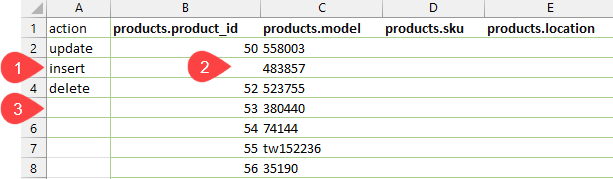
1. To insert new product, enter insert as the action.
2. To insert new product, leave product_id empty.
3. If you leave the action empty, AbanteCart will treat it as an update action.
Example 1: Update Products
In this example we will show how to easily update your existing products.
1. Export one or all products. Go to System → Data → Import/Export. In the Export Tab, find Products, click to expand the table and select only product_descriptions table.
2. In the opened CSV file, easy to update/edit this products fields:
| products.model |
| products.quantity |
| products.price |
| products.weight |
| products.length |
| products.width |
| products.height |
| products.sort_order |
| product_descriptions[0].name |
| product_descriptions[0].description |
You can also edit other fields. But You need to know your correct ids/values already existing in your data for this fields:
| products.stock_status_id |
| products.manufacturer_id |
| products.shipping |
| products.tax_class_id |
After that, Go to System → Data → Import/Export → Import Tab.
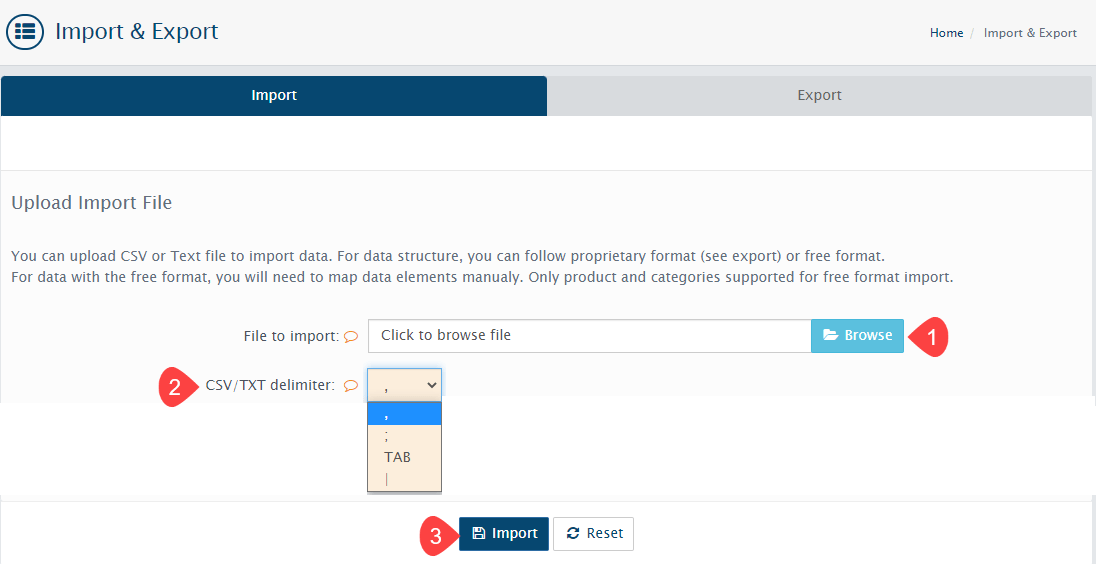
1. Click browse to upload the file that you have updated.
2. Select the file’s delimiter.
3. Finally, click the import button to start importing the products(s).
After processing the message will be shown. Normally 0 errors should be displayed.
Example 2: Insert Products
Before inserting a lot of new products, just create a sample product in Admin → Catalog → Products with all fields you need. Refer to Add Or Edit Products K.B. here.
Then export to CSV file. Make sure to select required tables like:
| product_descriptions |
| products_to_categories |
| products_to_stores |
or any other tables which one contain the needed data for a configured sample product.
Then open exported CSV file in CSV editor like OpenOffice Calc, Microsoft Excel, etc.
Be sure to open a file with the correct CSV delimiter.
Copy row with sample product to make sure new product will be configured in the same way.
To insert new products using import tool you need to add a new column named action in the exported file.

Make sure to:
A. Leave empty products.product_id.
B. Type insert in the action column.
C. And fill other columns like in exiting sample product.
After that, Go to System → Data → Import/Export → Import Tab.
1. Click browser to upload the file that you have updated.
2. Select the file’s delimiter.
3. Finally, click the import button to start importing the products(s).
See CSV (TAB delimited) examples for insert:
1. Categories insert: categories-insert-example-tab.csv.
2. Manufacturers Insert: manufacturers-insert-example-tab.
3. Products Insert: products-insert-example-tab.
Example 3: Product Minimum Insert
This is a very minimum CSV file with columns allowing you to insert product with basic settings like name, weight, price, description, blurb, category id to assign, store id, tax class, quantity etc.
| In this example you can see some very important columns like products_to_stores[0].store_id.
For most cases it is 0 (unless you have multiple stores). products_to_categories[0].category_id is required to assign product to a storefront category. |
See CSV (TAB delimited) example for insert:
abantecart-import-minimum.csv.
Example 4: Insert Products With Images
1. Upload images by FTP to this path ../resources/image/somefolder/
2. Set this folder permission to 777 (or 755).
3. Change/add these columns in your CSV file:
resource_map[0].resource_id = leave empty
resource_map[0].object_name = products
resource_library[0][0].type_id = 1
resource_descriptions[0][0][0].language_id = 1 (the id of installed language)
resource_descriptions[0][0][0].name = anyname (usually imagefile name)
resource_descriptions[0][0][0].title = leave empty or fill if you need a title
resource_descriptions[0][0][0].description = leave empty or fill if you need a description for the resource
resource_descriptions[0][0][0].resource_path = somefolder/product_image_1.jpg
in case you have 2 languages installed in your cart, add the next columns
resource_descriptions[0][0][1].language_id = 9 (the correct id of second installed language)
resource_descriptions[0][0][1].name = anyname (usually imagefile name)
resource_descriptions[0][0][1].title = leave empty or fill if you need it
resource_descriptions[0][0][1].description = leave empty or fill if you need it
resource_descriptions[0][0][1].resource_path = somefolder/product_image_1.jpg
------------------------------------------------------------------------------------
to add multiple images to one product, please add more columns
resource_map[1].resource_id = leave empty
resource_map[1].object_name = products
resource_library[1][0].type_id = 1
resource_descriptions[1][0][0].language_id = 1 (the id of installed language)
resource_descriptions[1][0][0].name = some text (any resource name to second image)
resource_descriptions[1][0][0].title = leave empty or fill if you need it
resource_descriptions[1][0][0].description = leave empty or fill if you need it
resource_descriptions[1][0][0].resource_path = somefolder/product_image_2.jpg (path to second image)
same for second language if you have it installed
resource_descriptions[1][0][1].language_id = 9 (the correct id of second installed language)
resource_descriptions[1][0][1].name = some text (any resource name to second image)
resource_descriptions[1][0][1].title = leave empty or fill if you need it
resource_descriptions[1][0][1].description = leave empty or fill if you need it
resource_descriptions[1][0][1].resource_path = somefolder/product_image_2.jpg (path to second image)
---------------------------------------------------------------------------------------
and to add one more image
resource_map[2].resource_id = leave empty
resource_map[2].object_name = products
resource_library[2][0].type_id = 1
resource_descriptions[2][0][0].language_id = 1 (the id of installed language)
resource_descriptions[2][0][0].name = sometext (any resource name to 3rd image)
resource_descriptions[2][0][0].title = leave empty or fill if you need it
resource_descriptions[2][0][0].description = leave empty or fill if you need it
resource_descriptions[2][0][0].resource_path = somefolder/product_image_3.jpg (path to second image)
resource_descriptions[2][0][1].language_id = 9 (the id of second installed language)
resource_descriptions[2][0][1].name = sometext (any resource name to 3rd image)
resource_descriptions[2][0][1].title = leave empty or fill if you need it
resource_descriptions[2][0][1].description = leave empty or fill if you need it
resource_descriptions[2][0][1].resource_path = somefolder/product_image_3.jpg (path to second image)
See CSV (TAB delimited) example for inserting product with images:
insert-product-with-images.
Example 5: Import Resources By URL
| Important note: The following columns are for AbanteCart 1.2.6 and higher only! |
Change/add this columns in your csv file:
resource_map[0].type           = image

resource_map[0].source_url     = http://www.abantecart.com/images/devices.png

resource_map[0].source_path    = leave empty

resource_map[0].html_code      = <i class="fa fa-optin-monster">  (if you want to add html resource or leave them empty)
------------------------------------------------------------------------------------
to add multiple images to one product, please add more columns
resource_map[1].type = image
resource_map[1].source_url = http://www.abantecart.com/images/banners/admin_iphone.jpg
resource_map[2].type = pdf
resource_map[2].source_url = http://www.pdf995.com/samples/pdf.pdf
You can and more and more images for one product in a similar way.
Example 6: Insert Product wWth Option And Quantity Pricing
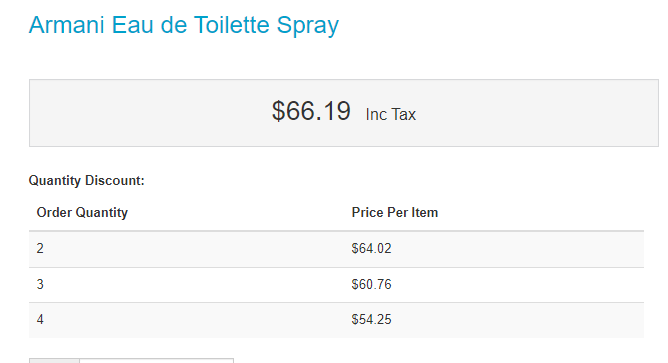
See CSV (TAB delimited) example for inserting product with option and quantity pricing:
product-insert-quantityprice.csv.
Example 7: Update Product (add images to product)
You can and more product rows. The attached example is TAB delimited CSV file update-product-with-images.csv.
1. Upload your images to resources/image/somefolder.
2. Please use the attached TAB delimited CSV file as an example of how to update products (add resource image to products)
3. In the CSV file double-check you have set a valid product id (first column) and the path to the image file (last column).
4. When import, make sure to select the correct delimiter!
Additional Examples
1. Download New Products Example (insert): abantecart-import-test-new.csv.
2. Download Update Products Example (update): abantecart-import-test-existing