How to Find and Install the Correct Upgrade Version
| Note: This is ALL the versions released and the upgrade file link. This is useful if the information in your message box has been deleted. |
You can find official upgrade details on the AbanteCart news page: https://www.abantecart.com/shopping-cart-news
Step 1 – Find Your Installed Version
- Scroll down the news page.
- Locate the version that matches the one currently installed on your store.
- Click “View” to see the full release details.
- Scroll to the bottom of that version page.
You will see a message similar to:
Core upgrade from 1.4.2 to new version 1.4.3 is now available.
You can upgrade from admin section clicking on message about upgrade or using abantecart_upgrade_143 installation key in extension installation section.
Step 2 – Install the Upgrade
There are two ways to upgrade:
Option A – Upgrade via Admin Notification
- Log in to your Admin panel.
- Click the upgrade notification message.
- Follow the on-screen instructions.
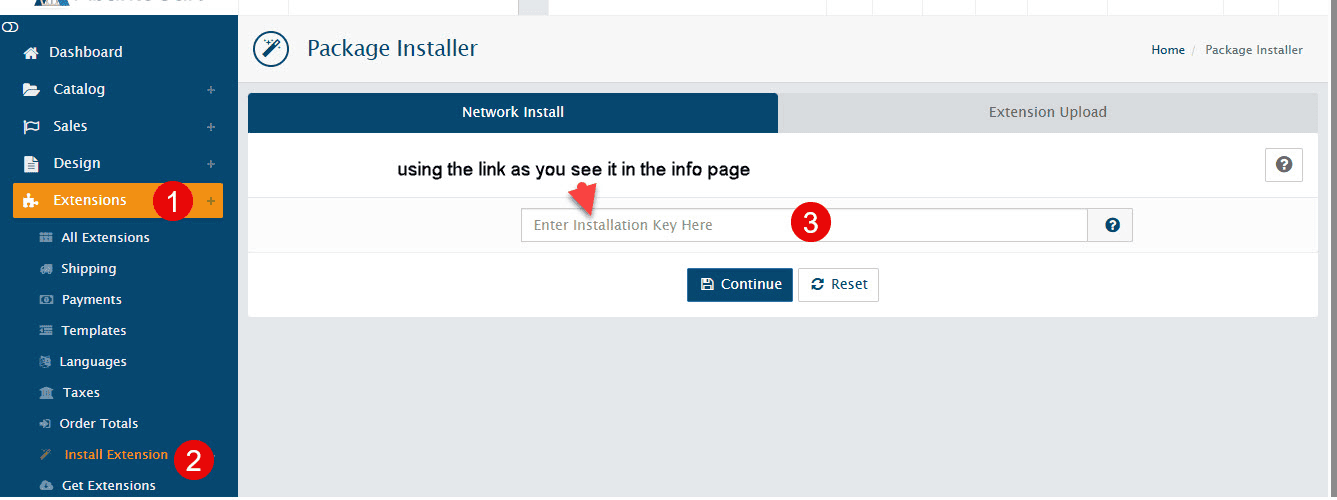
Option B – Upgrade Using Installation Key
- Go to Admin → Extensions → Install Extension.
- Enter the provided installation key (example:
abantecart_upgrade_143) - Click Install.
📌 See the image below for where to enter the installation key in the Admin panel.
Important Notes
- You must upgrade one version at a time.
- You can download the patch files for the cart version that you use here.